Creating a JAMB portal account is the first step every UTME and Direct Entry candidate must complete before registering for admission into any university, polytechnic, college of education, or nursing school in Nigeria.
Your JAMB e-Facility account gives you access to important services including UTME and Direct Entry registration, checking your JAMB result, monitoring your admission status on CAPS, printing admission letters, correcting personal information, and other JAMB services.
This updated 2026/2027 guide explains exactly how to create your JAMB portal account, verify your email address, set up your profile securely, and avoid common mistakes during registration.
Quick Answer
How to Create Your JAMB Portal Account (2026/2027)
To create your JAMB portal account for the 2026/2027 academic session, visit the JAMB e-Facility portal, click Create Account, enter your email address and phone number, verify your email using the confirmation code sent by JAMB, then complete your personal details and create a password. Your JAMB e-Facility account gives you access to UTME registration, CAPS, admission status, results, and other JAMB services.
Requirements Before Creating Your JAMB Portal Account
Before you begin creating your JAMB e-Facility account, make sure you have the following:
- A valid and active email address that you can access immediately.
- A personal mobile phone number (SIM card) that belongs to you.
- Your National Identification Number (NIN).
- A strong password you can remember.
- A stable internet connection.
Important: Use your own phone number and email address. JAMB links your account to these details, and you will need them later for registration, admission, password recovery, and other JAMB services.

sign-up for your JAMB portal account
Step 1
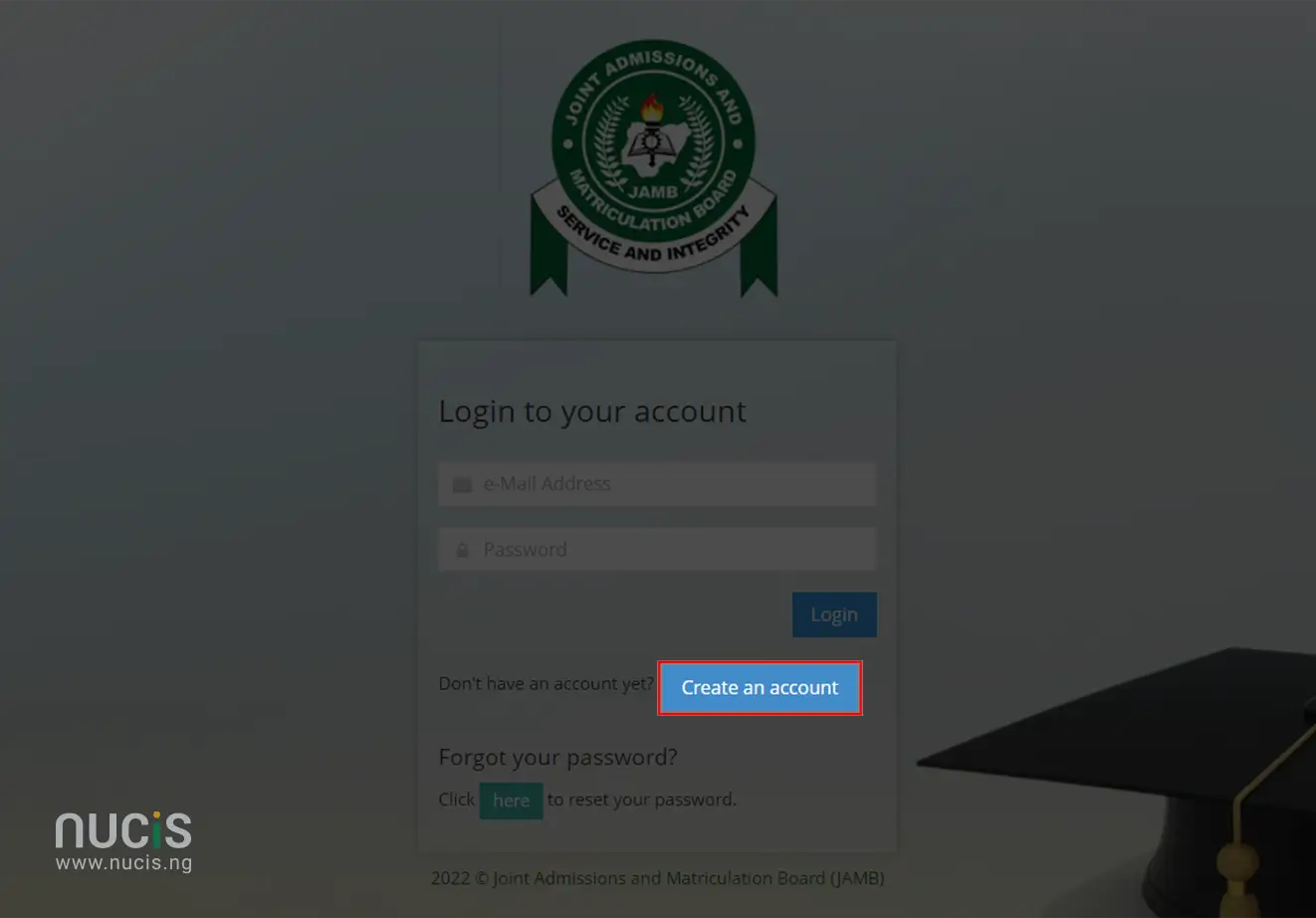
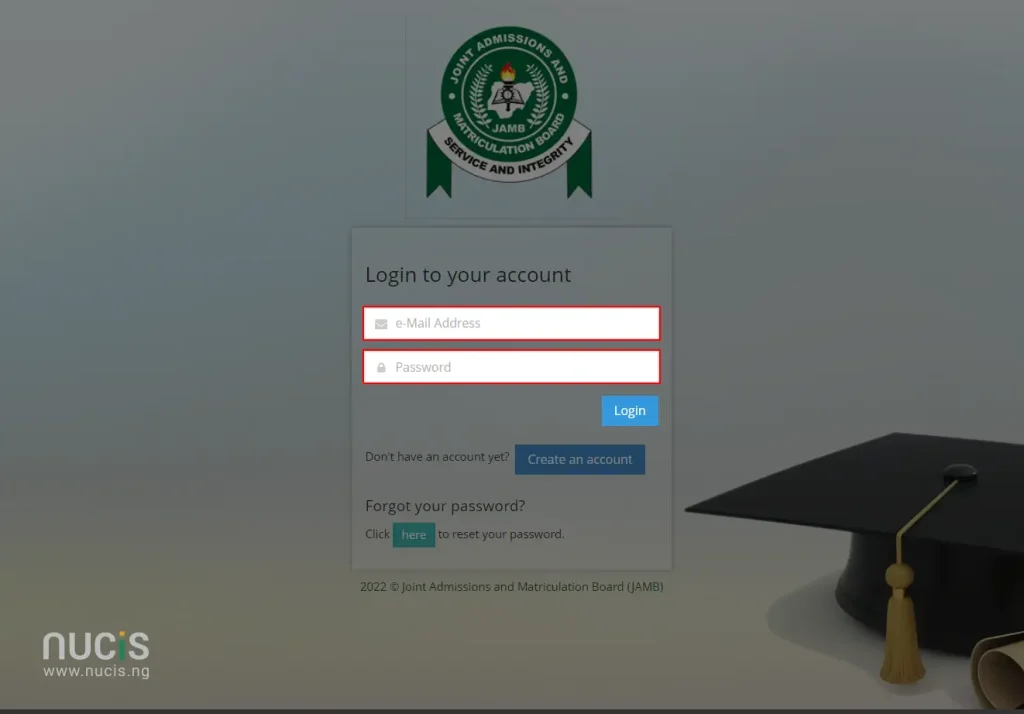
Visit JAMB eFacility portal
To sign-up for a JAMB portal account visit the JAMB eFacility portal and click on “Create an account“.
Important: Creating a JAMB Account is Different from Generating a Profile Code
Creating a JAMB e-Facility account is not the same thing as generating your JAMB Profile Code for UTME registration.
To generate a Profile Code, candidates must send:
NIN followed by a space and their 11-digit NIN to 55019 or 66019 using the mobile number they want to use for JAMB registration.
Example:
NIN 00123456789
JAMB will send your unique Profile Code to that phone number after successful verification.
Step 2
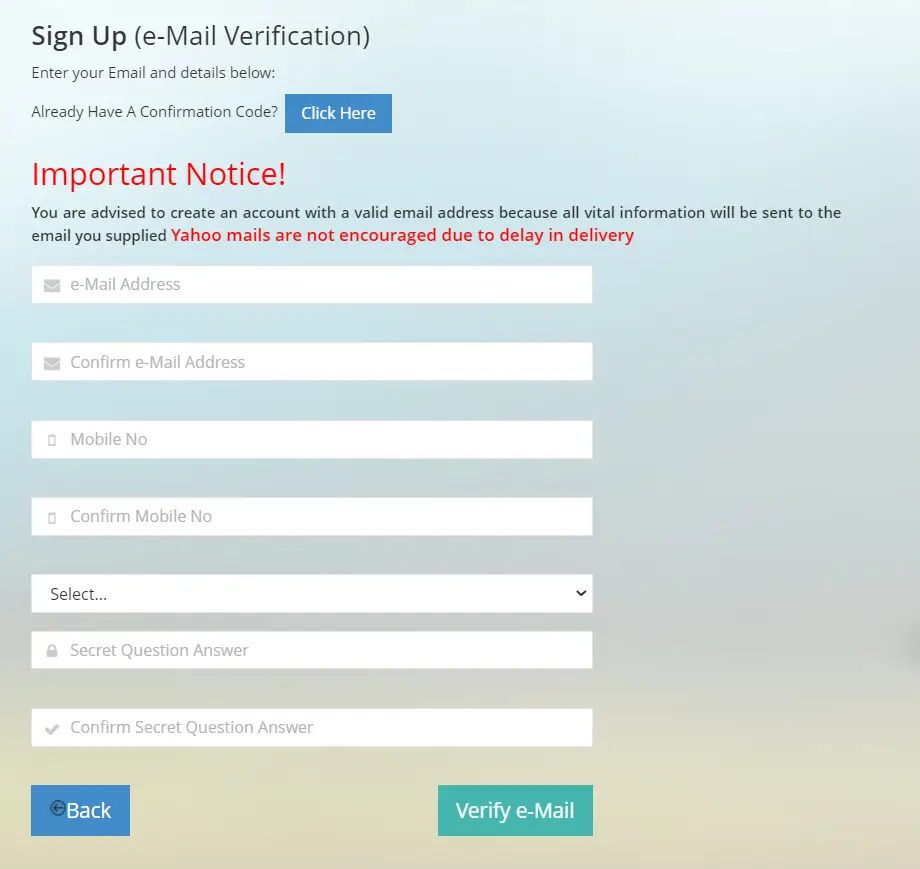
Enter Your Email Address and Mobile Number
On the registration page:
- Enter a valid email address.
- Re-enter the same email address for confirmation.
- Enter your personal mobile number.
- Confirm the mobile number.
- Choose a security question.
- Enter the answer to the security question.
- Click Verify Email.
Tips before continuing:
- Use an email address you check regularly.
- Do not use someone else’s email or phone number.
- Write down your security question and answer somewhere safe because you may need them to recover your account later.
- Click on the “Verify Email” button to proceed.
Step 3
Email Verification
- You will receive an email from JAMB with a verification link and a confirmation code. Check your email inbox or spam folder.
- Copy the Confirmation Code, this shall be required to complete your Profile Creation.
- Click on the verification link to proceed to the e-Mail Verification page.
Step 4
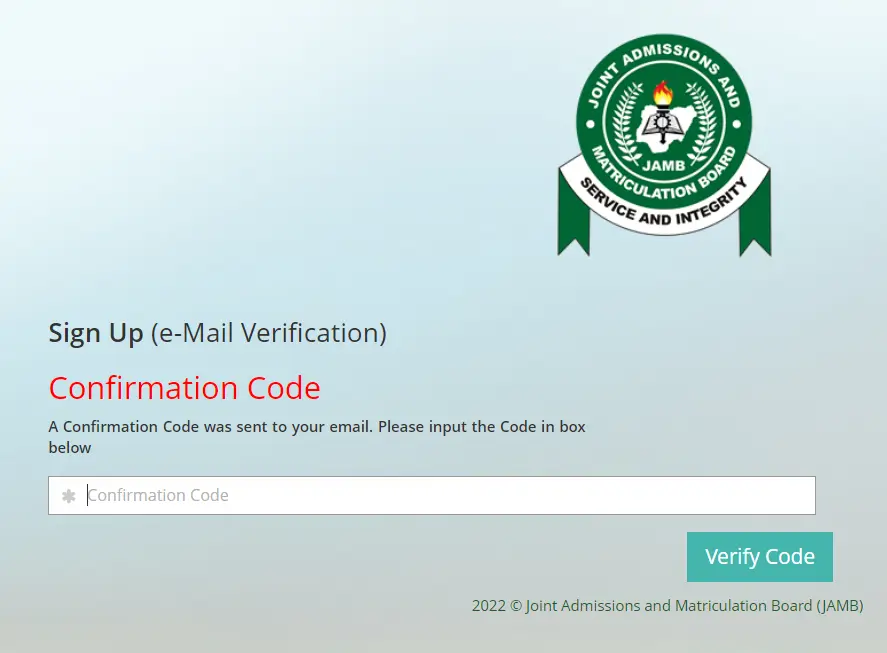
Enter the Confirmation Code
- On the e-Mail Verification page, enter the confirmation code sent to your email.
- Once the code is confirmed, you will be redirected to the account creation page.
Step 5
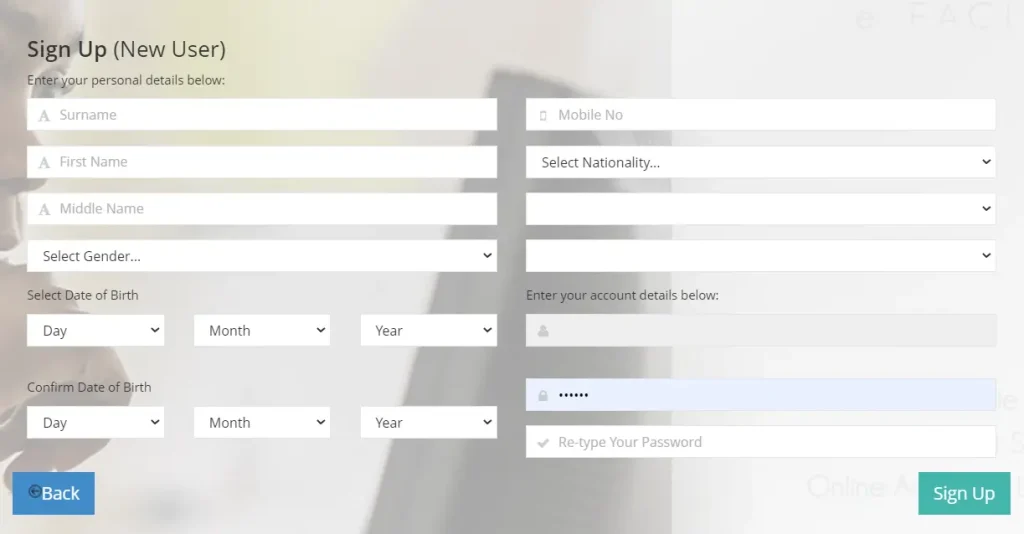
Fill Out Your Profile Information
- Complete the registration form by providing your personal details, such as your full name, date of birth, phone number, nationality, and gender.
- Create a password for your JAMB account. Ensure the password is strong and secure.
- Review the details you have provided to make sure they are correct.
- Click on the “Sign Up” or “Create Account” button to complete your registration.
What You Can Do After Creating Your JAMB Portal Account
Once your account has been created successfully, you can log in to the JAMB eFacility portal using your email address and password.
Your account gives you access to services such as:
How to Recover Your JAMB Portal Password
Forgot your JAMB portal password? You can reset it without creating a new account.
Steps to Reset Your Password
- Open the JAMB e-Facility login page.
- Click Forgot Password.
- Enter the email address linked to your JAMB account.
- Follow the password reset instructions sent to your email.
- Create a new password and log in again.
If You Don’t Receive the Password Reset Email
- Check your Spam or Junk folder.
- Confirm that you entered the correct email address.
- Wait a few minutes and request another reset email if necessary.
Important: Do not create a second JAMB account because you forgot your password. Each candidate should have only one JAMB profile.
Is a JAMB Portal Account the Same as a JAMB Profile?
This is a common source of confusion for many candidates.
A JAMB portal account (e-Facility account) is your online account used to access JAMB services.
A JAMB Profile is the candidate profile linked to your National Identification Number (NIN) and mobile number for UTME or Direct Entry registration.
The Difference
| JAMB Portal Account | JAMB Profile |
|---|---|
| Created online using your email address. | Generated using your NIN and registered mobile number. |
| Used to log into JAMB e-Facility. | Used during UTME or Direct Entry registration. |
| Gives access to CAPS, results, admission letters, corrections, and other services. | Generates your unique JAMB Profile Code and registration records. |
Common Mistakes to Avoid When Creating a JAMB Portal Account
Creating your JAMB account is straightforward, but these common mistakes can cause problems later during registration and admission.
Using Someone Else’s Email Address
Always use your own email address. JAMB sends password reset links, admission notifications, and important updates to the registered email.
Using Someone Else’s Phone Number
Your phone number is linked to your JAMB profile and is used for important registration activities, including generating your Profile Code.
Creating More Than One JAMB Account
JAMB allows only one profile per candidate. Creating multiple accounts can lead to registration or admission issues.
Forgetting Your Security Question
Write down your security question and answer in a safe place. They may be required during account recovery.
Entering Incorrect Personal Details
Ensure your name, date of birth, email address, and phone number match your official records before submitting your profile information.
Important Tips
Keep these tips in mind before completing your registration:
- Use a personal email address that you will continue using throughout your admission process.
- Use a phone number that belongs to you and keep the SIM active after registration.
- Store your email password, JAMB password, and security question safely.
- Never share your JAMB login details with anyone.
- Always access your account through the official JAMB e-Facility portal.
- Avoid creating multiple JAMB accounts, even if you forget your password.
Following these steps will help you create your JAMB portal account quickly and easily, ensuring that you are set to start your journey to higher education in Nigeria.
F.A.Q.
Yes. Every UTME and Direct Entry candidate must create a JAMB e-Facility account before using JAMB’s online services, including registration, checking results, admission status, CAPS, and printing admission letters.
Yes. You can create your JAMB portal account on an Android phone, iPhone, tablet, or computer using a web browser. Ensure you have a stable internet connection and access to your email address during the verification process.
Yes. A JAMB portal account gives you access to the e-Facility portal, while a Profile Code is generated separately using your NIN and registered mobile number for UTME or Direct Entry registration.
No. Each candidate should have only one JAMB portal account linked to a unique email address.
Check your Spam or Junk folder first. If you still don’t receive the email, confirm that the email address was entered correctly and request another verification code.
Click Forgot Password on the JAMB e-Facility login page and follow the password reset instructions sent to your registered email address.
Yes, but changes to important profile information must be made through JAMB’s official correction procedures. Do not create a new account simply because you want to use a different email address.
After creating your account, generate your JAMB Profile Code (if registering for UTME/DE), complete your UTME or Direct Entry registration at an accredited CBT centre, and use your account for admission-related services throughout the admission process.
These FAQs avoid overlapping with your other JAMB articles.